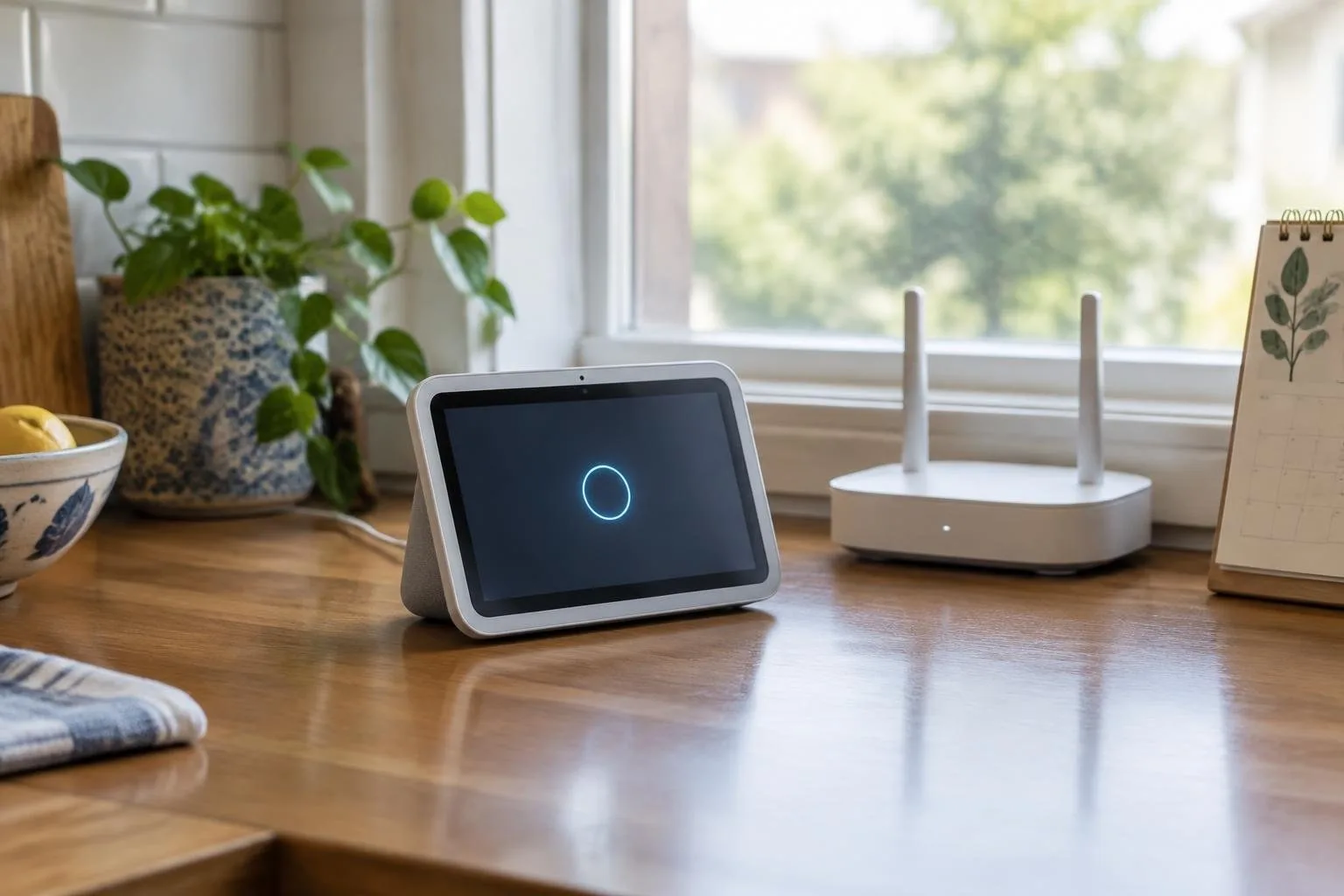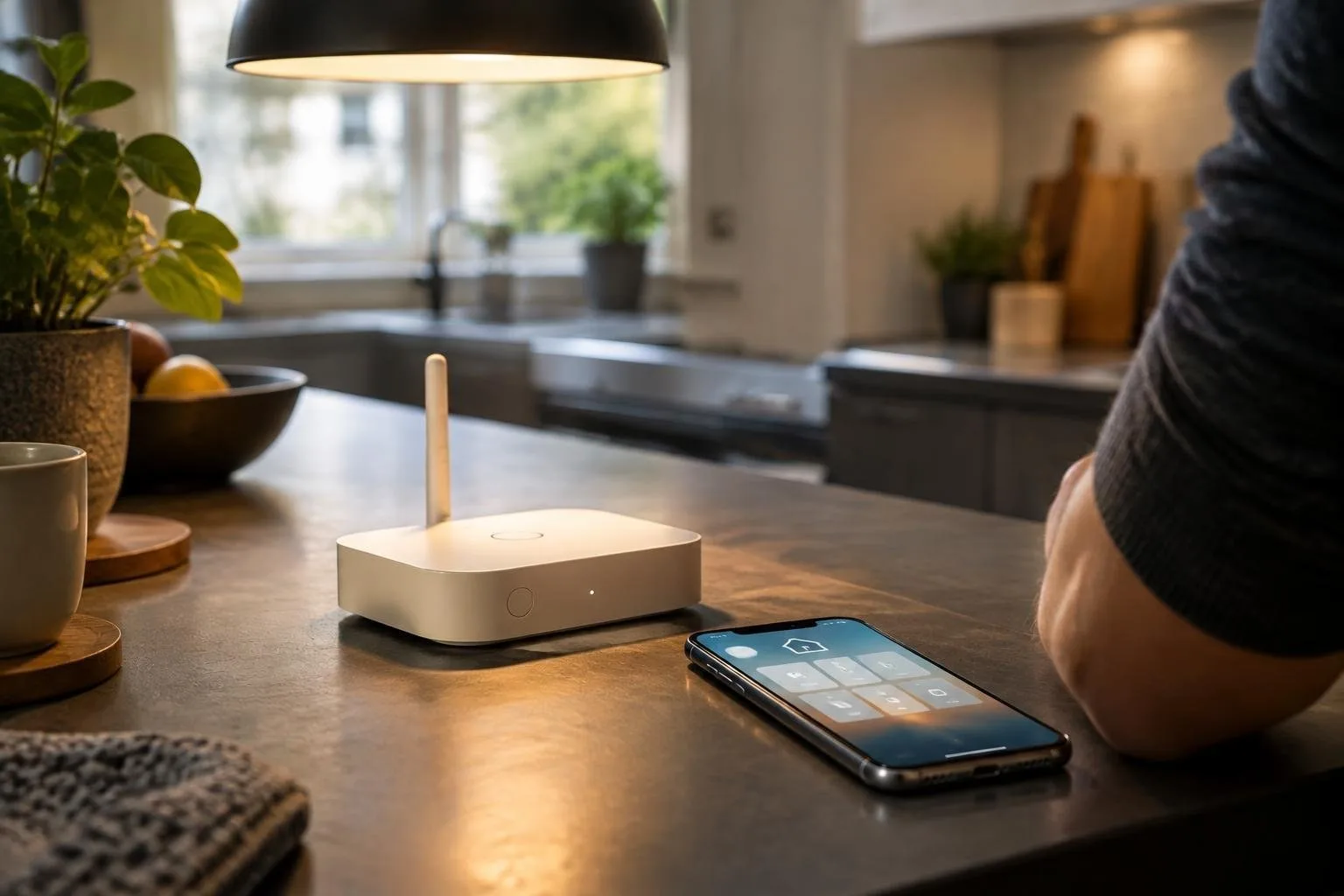
Setting up a smart home hub can seem like a daunting task, but with Apple HomeView, it’s easier than ever. Using your iPhone, you can create a centralized hub to control all your smart devices. Apple HomeView is a feature that allows you to control and automate your smart home devices, making it easy to manage your home’s lighting, temperature, and security.
To get started, you’ll need to unbox and set up your Apple HomeView device. This includes plugging it in, downloading the Apple Home app, and following the in-app instructions to complete the setup process. Once you’ve set up your device, you can start adding your smart home devices, such as lights, speakers, and thermostats.
Pairing Devices
Pairing devices with Apple HomeView is a straightforward process. Simply open the Apple Home app, tap on the + icon, and select the device you want to add. Follow the in-app instructions to complete the pairing process. You can also use Siri to control your devices, making it easy to turn on lights, adjust the temperature, and play music.
Creating Scenes
With Apple HomeView, you can create scenes that allow you to control multiple devices with a single command. For example, you can create a goodnight scene that turns off all the lights, locks the doors, and adjusts the temperature. To create a scene, open the Apple Home app, tap on the scenes tab, and follow the in-app instructions.
Starter Automations
Apple HomeView also allows you to create automations that can automate tasks based on certain conditions. For example, you can create an automation that turns on the lights when you enter a room. To create an automation, open the Apple Home app, tap on the automations tab, and follow the in-app instructions.
Troubleshooting
If you encounter any issues during the setup process, don’t worry. Apple HomeView has a built-in troubleshooting feature that can help you resolve common issues. You can also visit the Apple Support website for more information and guidance.
With Apple HomeView, you can create a smart home hub that’s tailored to your needs. By following these steps and tips, you can easily set up and start using your Apple HomeView device. So why wait? Start creating your smart home hub today and experience the convenience and ease of controlling your devices with Apple HomeView.